Windows Shell Manager
Windows Kontext
The most complete Windows shell manager there is. Context menus, Send To, Navigation Pane, icon overlays, packaged apps, CommandStore — 20+ categories in one fast UI, reaching menus, sub-CLSIDs and handlers other tools can't even see. Toggle anything; every change is backed up first. Now with a built-in Startup Manager for every boot and logon autostart — signature checks and safety advice included. It just works.
What it is
Hate the Windows 11 right-click menu? Take it back.
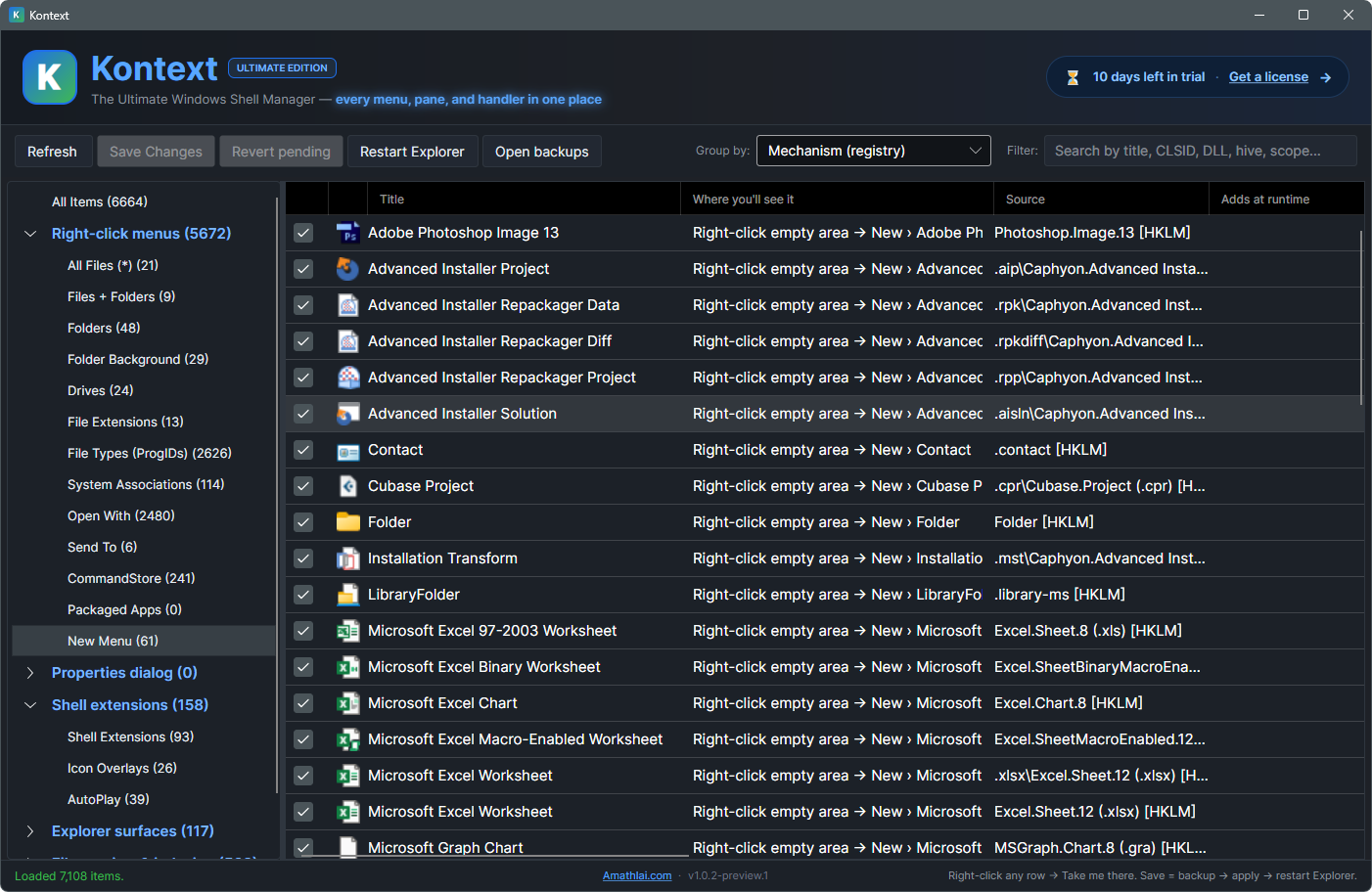
The Windows 11 context menu is cluttered, buries real actions behind "Show more options," and fills up with entries that apps add without asking. Kontext shows every one of them and lets you switch off what you don't want — then does the same for the rest of the shell.
Plenty of tools attempt this — most are broken, abandoned, or only scratch the surface. Kontext reaches all of it — even the menus, sub-CLSIDs and handlers other tools can't see — across 20+ shell categories in a single, fast UI. See every right-click item, Send To target, Navigation Pane root, packaged app handler, CommandStore command, icon overlay, and Property Sheet extension on your machine — and decide what stays and what goes.
Every change is reviewed in a pending list before you apply it. Every apply backs up the affected registry keys first. Restart Explorer with one click when you're done. That's it — no surprises, no bloat, no fluff.
Coverage
20+ shell categories — everything in one place.
- Right-click menus (All Files, Folders, Drives, ProgIDs, System Associations)
- Send To
- Open With handlers
- CommandStore commands
- Packaged Apps (UWP/MSIX)
- New Menu items
- Properties dialog tabs
- Shell extensions
- Navigation Pane roots
- Explorer surfaces (toolbars, columns)
- Icon overlays
- File preview & indexing handlers
- AutoPlay handlers
- System & other (CLSIDs, namespace extensions)
- Folder Background commands
- Files + Folders combined menus
- File extensions
- File types (ProgIDs)
Features
Built for people who actually use Windows.
Auto-backup before any change
Every apply writes a registry backup first — to a folder you can open with one click. Mistakes are reversible. Always.
One-click Explorer restart
Most shell changes need an Explorer restart to take effect. Kontext does it for you — no Task Manager dance.
Filter across thousands of items
Search by title, CLSID, DLL, hive, scope, or runtime menu. Find what you need in a 7,000-item list in under a second.
Pending changes — review then apply
Toggle as many items as you want. Nothing touches your registry until you click Save. Revert pending wipes the whole staging set.
Take me there
Right-click any row to jump straight to the registry key in regedit. No more hunting through HKLM\SOFTWARE\Classes for an hour.
FAQ
Questions people ask
How do I remove items from the Windows 11 right-click menu?
Kontext lists every entry across 20+ shell categories, including the Windows 11 right-click menu. Tick off the ones you don't want, review the pending list, and click Save — they disappear from your menu. Nothing changes on your machine until you apply.
How do I edit or modify the Windows 11 right-click (context) menu?
Without touching the registry. Kontext lists every entry in your right-click menu — and the rest of the shell — each shown with its real app name and icon, and lets you switch any of them on or off with a click. Every change is backed up first, so anything you modify can be restored exactly as it was. (Kontext manages and removes existing entries; it doesn't add custom commands.)
How do I fix a slow or laggy right-click menu in Windows 11?
A slow or freezing right-click menu is almost always a third-party shell extension stalling. Kontext shows every shell extension hooked into your menu, so you can disable the culprits and get it opening instantly again — with an automatic backup, so you can re-enable anything if needed.
How do I remove items from "Show more options" and clean up the menu?
"Show more options" is where most third-party entries pile up. Kontext finds them across all the places they hide, lists each by the app that added it, and lets you switch off the ones you don't want — one click, backed up first so it's reversible. No manual registry editing.
What's the best Windows context-menu manager?
It depends what you need, but the two things that matter are coverage and a safe undo. A lot of tools only reach the obvious right-click entries; Kontext was built to cover the whole shell — 20+ categories, each entry labelled with its real app name — and to back up every change automatically so it's all reversible. If you only need to remove a couple of basic entries, simpler free tools exist too.
How do I manage or disable Windows shell extensions?
Shell extensions are the handlers apps add to Explorer — context-menu items, thumbnail and preview handlers, icon overlays and more. Kontext lists them all in one place with the app each belongs to, and lets you switch any off (and back on) with an automatic backup — handy when one is cluttering your menu or slowing Explorer down.
Is it safe to disable shell entries — can I undo a change?
Yes. Before it applies any change, Kontext backs up exactly what it's about to change to a folder you can open in one click — so anything can be reversed.
Any ads, adware, or bundled software?
None. Kontext is code-signed by Amathlai.com, installs nothing besides the app, shows no ads, and adds no toolbars. It only reads and changes Windows shell entries — and backs up every change first.
Does Kontext need administrator rights?
Yes — Kontext needs administrator rights to read and change your shell entries. It requests this for you when it launches.
Will I have to restart File Explorer?
Most shell changes only take effect after File Explorer restarts. Kontext does that for you with one click — no Task Manager needed.
What can Kontext manage besides the right-click menu?
A lot. Context menus, Send To, the Navigation Pane, Open With, the New menu, icon overlays, packaged (UWP) app handlers, CommandStore commands, property-sheet tabs, AutoPlay handlers and more — 20+ categories in one place.
Is it free, and which Windows versions are supported?
It is free for 10 days with no signup. After that it is a one-time lifetime license (price shown on this page) — no subscription. Works on Windows 10 and Windows 11.
Take back your right-click menu.
For Windows 10 and 11.
Also from Amathlai
Windows Notification Fixer — bring back the toast pop-ups Windows keeps dropping.